Clockify to Google Sheets, already totalled for invoicing.
Import your own entries or a whole workspace into the Google Sheet you already use. Project and person totals stay ready for the next invoice.
Demo uses sample dataTrial starts on first importNo card€19/month after trial
Want the first import done with you?
Email the developer directly. We will connect one workspace, run the first import and make sure the totals fit your invoice sheet.
What does the monthly Clockify report cost your team?
Use your own numbers. This estimates the time tied up in exporting, cleaning and rebuilding the invoice sheet—not a guaranteed saving.
HourSync is most useful when the same report is rebuilt repeatedly. Test it on a copy of your current sheet before changing the workflow.
Not ready to install? Get the free invoice template →One admin import. Everyone's hours.
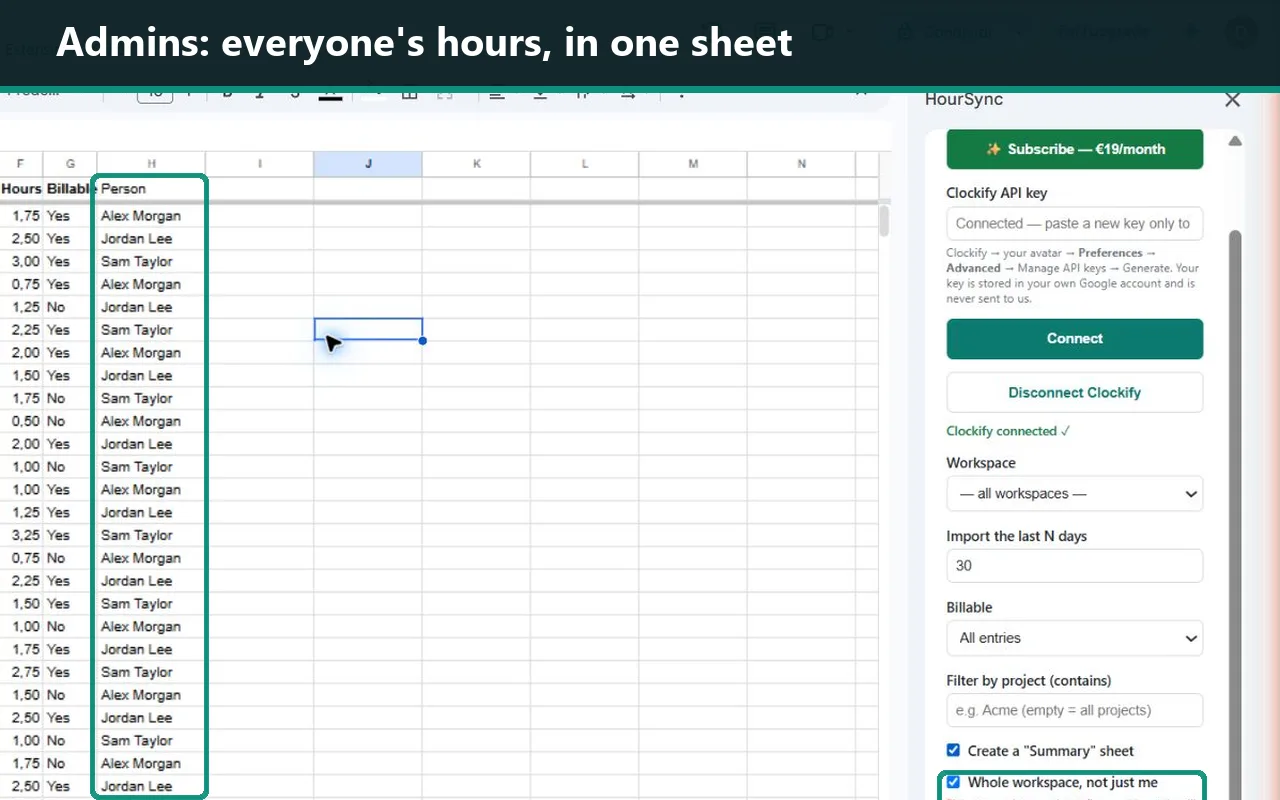
Tick Whole workspace, not just me. HourSync adds a Person column and builds project and team totals in the spreadsheet you already use.
- One €19/month subscription for the person running the import — not per seat.
- One workspace at a time, with a clear error if Clockify needs admin permission.
- Your existing invoice formulas and tabs stay untouched.
What you can verify about HourSync before you install
HourSync is new, so instead of an install counter or a wall of five-star reviews — which I could fabricate and you could not check — here are four things you can verify yourself, right now:
- No HourSync server exists. The add-on runs inside Google Apps Script, under your own Google account. Your time entries go straight from Clockify into your sheet.
- Every permission is listed on this page, with the scope name, so you can compare it against the consent screen Google shows you. Read them before you install, not after.
- One developer, a real name, a real inbox. I answer support email myself, usually within one business day. Who builds this.
- Two ways to cut off access, and neither goes through me — one at Google, one at Clockify. Both are here.
What lands in your sheet
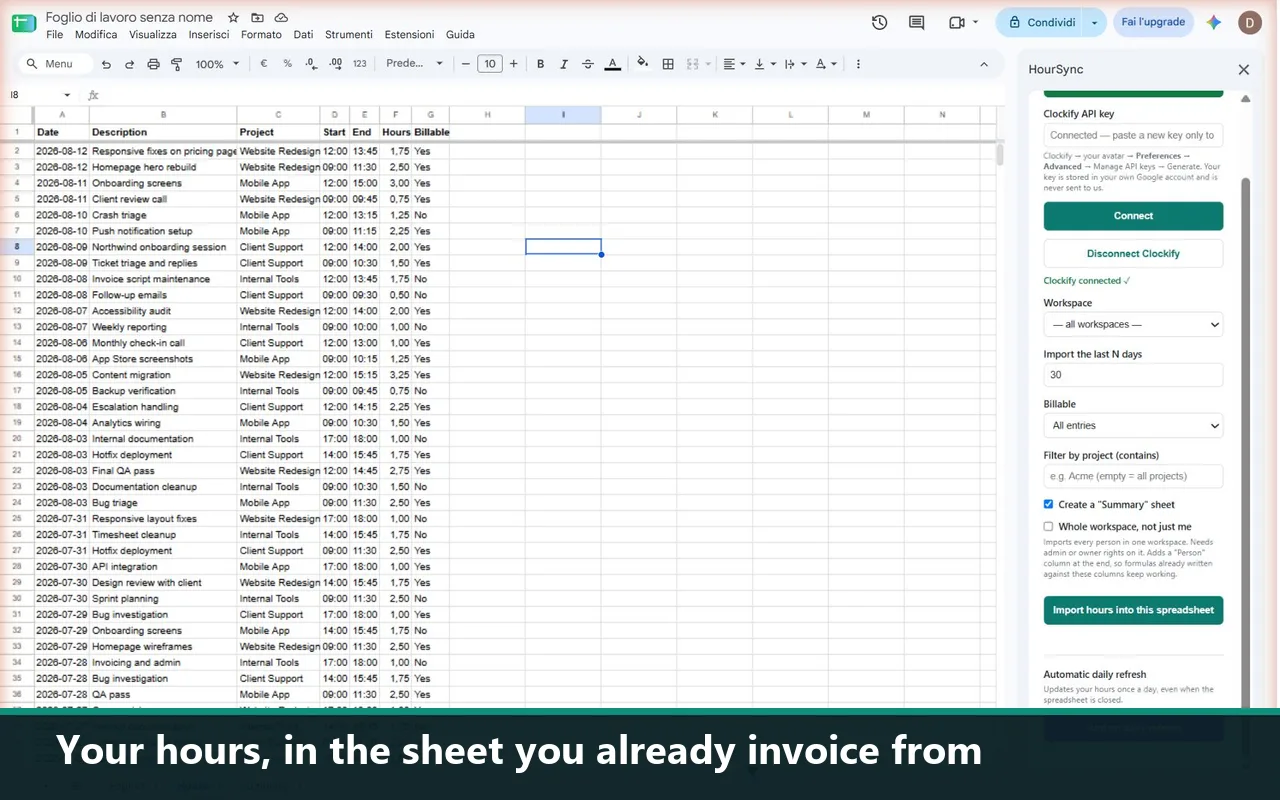
HourSync creates a sheet named Hours in the spreadsheet you opened it in, and writes one row per Clockify time entry.
| Date | Description | Project | Start | End | Hours | Billable |
|---|---|---|---|---|---|---|
| 2026-07-28 | Homepage wireframes | Acme — website redesign | 09:15 | 11:40 | 2.42 | Yes |
| 2026-07-28 | Client call | Nord Consulting — Q3 retainer | 14:00 | 14:45 | 0.75 | Yes |
| 2026-07-29 | Component library | Acme — website redesign | 09:05 | 12:30 | 3.42 | Yes |
| 2026-07-29 | Invoicing & admin | (no project) | 17:10 | 17:50 | 0.67 | No |
| 2026-07-30 | Copy review | Nord Consulting — Q3 retainer | 10:00 | 11:20 | 1.33 | Yes |
| 2026-07-30 | Bug fixes | Acme — website redesign | 13:30 | 16:05 | 2.58 | Yes |
| 2026-07-31 | Sprint planning | Nord Consulting — Q3 retainer | 09:30 | 10:15 | 0.75 | Yes |
| 2026-07-31 | (no description) | Acme — website redesign | 11:00 | (running) | 0.00 | Yes |
| Column | What it contains |
|---|---|
| Date | The day the entry started, as YYYY-MM-DD |
| Description | The note you typed in Clockify (blank entries show (no description)) |
| Project | The Clockify project name (blank ones show (no project)) |
| Start | Start time, HH:MM, in your spreadsheet's timezone |
| End | End time, HH:MM — a running timer shows (running) |
| Hours | Duration in decimal hours, rounded to two decimals, ready to multiply by your rate |
| Billable | Yes or No, straight from Clockify's billable flag — see the note below |
About the Billable column, honestly: billable rates are a paid Clockify feature — they are not part of Clockify's Free plan. On a Free Clockify account every row comes back as No, so the Billable column, and the billable filter, only do something once you are on Clockify Basic or higher.
Every import rewrites the Hours sheet, so you never end up with duplicate rows or a second file to reconcile. Anything you build in other tabs — invoice templates, rate lookups, pivot tables — keeps pointing at the same range.
HourSync also writes a Summary sheet: one row per project, total hours, and a grand total at the bottom. That is the number you put on the invoice.
| Project | Total hours |
|---|---|
| Acme — website redesign | 8.42 |
| Nord Consulting — Q3 retainer | 2.83 |
| (no project) | 0.67 |
| TOTAL | 11.92 |
The whole workspace, not just you. If you are an admin or owner of a Clockify workspace, tick Whole workspace, not just me and HourSync imports everyone's hours, not only your own. This is the part the free scripts cannot do: an API key reads the entries of the person it belongs to, so a script built on one returns one person's timesheet.
A Person column is added at the end of each row — at the end on purpose, so Hours stays in column F and every formula you have already written against this sheet keeps working. The Summary sheet then carries two blocks: hours per project, which is what you bill the client, and hours per person, which is what you owe the team.
It reads one workspace at a time, and says so, rather than merging several or quietly leaving one out. If Clockify refuses because you are not an admin there, HourSync reports that instead of returning your own hours as if they were the team's.
You can export a CSV. That is not the part that costs you.
The CSV route is the same six manual steps every month: run the report, download, open, paste, fix the columns, repair the formulas you just broke. And every export is a new file, so the work starts from zero each time.
HourSync writes into the spreadsheet that is already yours. Same tab, same columns, every month. Your invoice template, your rates and your formulas keep working, because nothing moved.
Stop rebuilding the same client report every month
The sheet stays where it is. Your formulas, your rates, your invoice template — all still pointing at the same rows. Import again next month and the numbers update in place.
Filter to one project before you invoice
HourSync lets you pull only one project — and, on paid Clockify plans, only billable entries — so what lands in the sheet is already what the client is paying for.
Hours per project, already totalled
The Summary sheet does the pivot table for you: every project, its total hours, and the grand total. Copy the number, send the invoice.
Yesterday's hours, imported overnight
HourSync runs the import once a day, automatically, so you are not doing it by hand the morning you invoice.
How to connect Clockify to Google Sheets — three steps, once
-
Install and open it
Open any Google Sheets™ spreadsheet, then Extensions → HourSync → Open panel. The add-on opens in the sidebar on the right.
-
Paste your Clockify API key
Paste the key into the sidebar and click Connect. HourSync loads your Clockify workspaces so you can pick one.
-
Choose how far back to go and click Import
Set the number of days you want and click Import. The Hours sheet is created and filled. Every import after this is one click.
Where to find your Clockify API key
In Clockify, click your avatar at the top right, then Preferences, the Advanced tab, Manage API keys, Generate. Name the key HourSync so you can revoke that one key later without touching anything else. Copy it — Clockify shows it once.
The connection works on any Clockify plan, but HourSync is designed for paid Clockify workspaces: billable fields and billable filtering require Clockify's paid features. Clockify applies rate limits to its API; a normal monthly import is a handful of requests and sits far below them. If Clockify ever rate-limits a request, HourSync waits, retries, and tells you plainly if it still cannot finish.
Ways to get Clockify data into Google Sheets, compared
There are four honest ways to do this. HourSync is the right one for exactly one of them.
Clockify has no native Google Sheets integration. Its own Google Sheets page points you to a manual CSV export, to third-party connectors like Coupler.io or Zapier, or to its API. HourSync is the fourth option: an add-on that runs inside your spreadsheet, with nothing to maintain outside it.
| Manual CSV export | Zapier / Make | Coupler.io and similar | HourSync | |
|---|---|---|---|---|
| Setup | Six steps, every month | Ten minutes or more | About six steps | Three steps, once |
| Where it runs | Your downloads folder | Their servers | Their servers | Inside your Google Sheets™ spreadsheet |
| Another account to create | No | Yes | Yes | No |
| Your data passes through a third party | No | Yes | Yes | No |
| Automatic daily refresh | No | Yes, task-metered | Yes, on paid tiers | €19/month, flat |
| Everyone's hours, not just yours | Admin re-export, by hand each time | Yes, metered per entry | Yes | Yes, for admins, same flat price |
| Per-project totals | Build the pivot yourself | Build it yourself | Yes, via its aggregation step | Yes, Summary sheet |
If you sync forty data sources across a company, use a real integration platform — that is what they are built for. If you track hours in Clockify and invoice from a spreadsheet, an add-on that does one job costs less and breaks in fewer places.
14 days free, then €19/month
Free trial
€0 for 14 days
- Every feature, unrestricted
- No credit card, no email signup
- Starts on your first import, not the day you install
If you do nothing, it simply ends. There is nothing to cancel.
Subscription
€19 /month
- Import your Clockify hours into your own spreadsheet
- Filter by project — and by billable status, on paid Clockify plans
- Summary sheet: hours totalled per project
- Automatic daily refresh
Your 14 free days start on your first import — not the day you install. No credit card, no email signup, nothing to cancel. If you do nothing, the trial simply ends.
What happens on day 15 without a subscription: HourSync stops importing. Every row it already wrote stays exactly where it is — nothing is deleted, nothing is locked, and the spreadsheet keeps working even if HourSync disappears tomorrow. Subscribe later and the next import carries on from where you stopped.
€19/month is roughly $21; VAT is added where the law requires it. Payments are handled by Stripe — your card details go to Stripe, never to me. Cancel any time from the link in your Stripe receipt. If HourSync is not for you, email me within 14 days of your first payment and I refund it in full. No form, no questions.
One flat price. No per-row metering, no task counter, no minimum team size.
What HourSync can access
Before you install, Google shows you a consent screen. Here are the exact scopes HourSync requests, so you can compare them line by line.
| Scope | Roughly what Google shows | Why HourSync needs it |
|---|---|---|
spreadsheets.currentonly | See, edit, create and delete only the specific spreadsheet you use with this app | To write the imported rows into the one spreadsheet you open it in. Not your other files. |
script.container.ui | Display and run third-party web content in prompts and sidebars inside Google applications | To draw the HourSync panel in the sidebar of your spreadsheet. That panel is the whole interface. |
script.external_request | Connect to an external service | To call the Clockify API — and Stripe, for the subscription check. Those are the only two hosts it ever contacts. |
script.scriptapp | Allow this application to run when you are not present | Only for the daily refresh, which runs while the spreadsheet is closed. Turn the refresh off and this never fires. |
userinfo.email | See your primary Google Account email address | To check with Stripe whether your subscription is active. Nothing else. |
userinfo.profile | See your profile info | Added automatically by the Google Workspace Marketplace platform, which includes it by default for every listed add-on. It is not in HourSync's own manifest and no profile data is ever read. |
What HourSync never does: it never touches your other Drive files or spreadsheets. It never sees your Google password. It never reads your email, calendar or contacts. It never sells, shares or resells anything.
How long does HourSync keep your data? It does not keep your time entries at all — there is no HourSync database. The single exception is Stripe's yes/no answer about your subscription, held briefly inside your own Google account so the add-on does not have to re-ask on every click. No row from your sheet and nothing from Clockify is ever stored.
Full detail in the Privacy Policy and the Terms of Service.
About your Clockify API key — the honest version
A Clockify API key cannot be made read-only. Clockify says so itself: whatever a user can do in the Clockify interface, they can also do with that user's API key. You should know that before you paste one anywhere — including here.
So, four straight answers:
- Where the key goes. It is stored in Apps Script user properties, inside your own Google account, scoped to you. It is not shared with other people who open the same spreadsheet, and it never reaches a server of mine — there is no server of mine.
- What HourSync does with it. Read calls only: your workspaces, your user record, your projects and your time entries. HourSync never writes to Clockify, never deletes an entry, never touches other people's time.
- How to limit the blast radius. If you are the admin or owner of the Clockify workspace, generate the key from a member-level Clockify user instead. Same imports, far less power in the key.
- How to take it back. Clockify → Preferences → Advanced → Manage API keys → the three-dot menu next to the key → Delete. If you named the key
HourSync, you revoke that one and nothing else breaks.
Where your data actually goes
- SourceClockify
- Runs inGoogle Apps Script, inside your own Google account
- DestinationYour Google Sheets™ spreadsheet
There is no fourth box. HourSync has no backend, no database, no logs of your entries, no copy of your spreadsheet. The code runs on Google's infrastructure under your own account, calls Clockify directly, and writes the result into your sheet.
The one exception is billing. Stripe handles payment and stores your card — I never see it. When HourSync checks whether your subscription is active, it sends your Google account email to Stripe and receives back yes or no. Nothing from your sheet and nothing from Clockify is ever part of that call.
I am not going to show you a SOC 2 badge, because I do not have one and buying one is not realistic for a one-person product. What I can tell you is that HourSync does not request any of Google's restricted scopes.
Two ways out, neither of them mine
Cut off Google access. Open your Google account's linked apps page, select HourSync, then See details → Remove access.
Cut off Clockify access. Clockify → Preferences → Advanced → Manage API keys → three-dot menu → Delete.
Do either one and HourSync stops working immediately. You do not have to email me, and you do not need my permission.
Uninstalling removes the add-on and its stored settings, including your API key. Your spreadsheet and everything already in it stay yours.
Who builds HourSync
I am Daniele, an independent developer in Italy. I built HourSync because I was pasting my own Clockify hours into a spreadsheet at the end of every month, and the CSV round trip broke my invoice formulas every single time.
That is also why it only asks for the sheet you connect it to. I did not want an add-on that could read all of mine either.
HourSync is built and supported by one person. The trade-off is honest: features ship slowly, but the person answering your email is the person who wrote the code. Support goes to danibarbers13@gmail.com and I reply within one business day, Monday to Friday.
And the fair question about one-person software — what if you stop? Your hours are already in your own Google Sheets™ spreadsheet. Nothing of yours lives on my side, so if HourSync ever disappears, your spreadsheet keeps working exactly as it is.
Frequently asked questions
What data does HourSync access?
Three things, and nothing else. In Google: only the spreadsheet you open the add-on in. In Clockify: your workspaces, projects and your own time entries, read through the API key you paste in. And your Google account email address, used only to check with Stripe whether your subscription is active.
Where is my Clockify data stored?
Nowhere on my side. There is no HourSync server and no HourSync database. The add-on runs inside Google Apps Script, under your own Google account: it calls the Clockify API directly and writes the result into your spreadsheet.
Where is my Clockify API key stored?
In Apps Script user properties, inside your own Google account and scoped to you — not to the spreadsheet, so other people who open the same file do not get your key. Worth knowing: Clockify does not allow read-only API keys, so yours carries the same power as your Clockify login. If you are a workspace admin, generate the key from a member-level Clockify user instead.
Does HourSync work on Clockify's free plan?
It runs, but it is built for a paid Clockify workspace. In April 2026 Clockify moved billable rates and billable tracking to its paid plans, so on a free workspace the Billable column and the billable filter have nothing to report — and the free plan's API limit of 30 requests per hour makes the daily import impractical.
Do I need a credit card to try HourSync?
No. The 14-day trial starts on your first import. No card, no signup, nothing to cancel.
What happens when the trial ends?
Importing stops until you subscribe. Rows already in your sheet stay exactly where they are: nothing is deleted, nothing is locked, and your formulas keep working.
How do I cancel, and can I get a refund?
Cancel any time from the link in your Stripe receipt. If HourSync is not for you, email me within 14 days of your first payment and I refund it in full.
Does it work with multiple Clockify workspaces?
Yes. You choose one workspace for each import and can switch to another whenever you need. HourSync does not merge multiple workspaces into one import.
Can I import my whole team's hours, not just my own?
Yes, if you are an admin or owner of the workspace. Tick Whole workspace, not just me and HourSync imports every person's entries and adds a Person column at the end of each row. It reads one workspace at a time. Without admin rights Clockify refuses the request and HourSync tells you so, rather than quietly importing only your own hours and letting you invoice from them.
Will it overwrite my other sheets?
No. HourSync writes only to the sheets it creates — Hours and Summary. Your other tabs are untouched.
How do I remove HourSync's access?
Three independent ways, none requiring support: use Disconnect Clockify inside HourSync, remove access at myaccount.google.com/connections, or delete the API key in Clockify under Preferences → Advanced → Manage API keys.
Get your Clockify hours into your sheet
Three steps, once, and your time entries are in the spreadsheet you already invoice from.
14 days free, no credit card · Full refund within 14 days of your first payment · Cancel any time