Move your whole Clockify workspace into Google Sheets
Three practical routes for getting every team member's time entries into the sheet you use for invoices, payroll checks, margins, or dashboards.
- 14 days free
- No credit card
- One admin connection
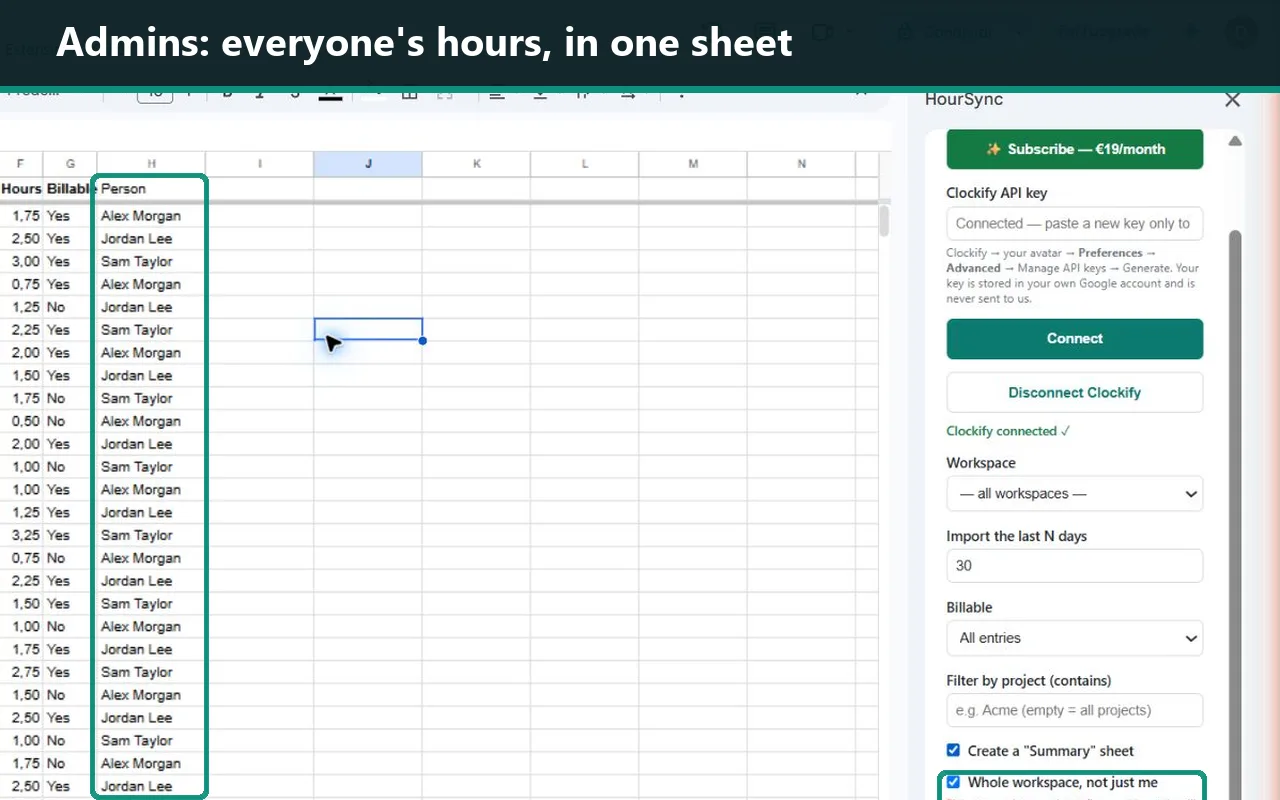
Choose by how often the report changes
First decide whether the sheet needs one person's entries or the whole workspace. Clockify says owners and admins can view and export all reports; regular users can only view their own entries.
| Method | Best for | Whole workspace | Automatic refresh | Maintenance |
|---|---|---|---|---|
| Report export | Occasional reporting | Yes, for admins/owners | No | Low |
| API + Apps Script | Custom technical workflows | Yes, with detailed reports | Yes | High |
| HourSync | Recurring team reports in an existing Sheet | Yes, from one admin connection | Daily on Pro | Low |
The short answer
Export for a one-off. Build on the API when the workflow is unusual and someone can maintain code. Use HourSync when the report repeats and the value is in the spreadsheet, not in maintaining another integration.
Export a Detailed report
For a monthly or ad-hoc report, use Clockify's Reports → Detailed view, apply the date and people filters, export the result, then import it into a raw-data tab in Google Sheets.
- Sign in as a workspace owner or admin if the sheet must include everyone.
- Export the Detailed report for the required period.
- Import it into a dedicated Hours tab.
- Keep formulas, pivots, and charts in separate tabs.
Free-plan limit: Clockify currently limits reports to 31 days and provides PDF exports only. CSV and Excel report exports require Basic or higher.
Trade-off: reliable and simple, but every refresh repeats the export, import, and cleanup.
Build an Apps Script integration
The API route gives full control over fields, filters, destinations, and schedules. For workspace-level reporting, use Clockify's Detailed Report endpoint and authenticate with an X-Api-Key header.
POST /v1/workspaces/{workspaceId}/reports/detailed
Plan for pagination, 31-day windows on Free workspaces, rate limits, regional API hosts, trigger failures, and schema changes. Clockify currently limits Free workspaces to 30 API requests per hour.
Use the working Apps Script guide →
Trade-off: the most flexible route, but someone owns the integration every month after launch.
Import the workspace with HourSync
One Clockify workspace admin connects an API key inside Google Sheets and selects Whole workspace, not just me. HourSync writes the detailed rows into the current spreadsheet and adds the person behind each entry.
- No separate HourSync accounts for team members.
- The imported rows stay in the user's own Google Sheet.
- The subscription is €19/month for the importer, not per Clockify seat.
- Daily refresh is available after the trial.
Disclosure: HourSync is built and supported by Daniele Barbieri Luigi, the author of this comparison.
Test one representative month before changing your workflow.
Install the add-on, connect one admin key, and rebuild one report you already use. If it does not save time, let the trial end—there is nothing to cancel.
14 days free from the first import · No credit card · Your existing rows remain yours
Build the report so refreshes cannot break it
Whichever method you choose, keep imported rows separate from calculations. A stable raw table can be replaced; invoice formulas and dashboards should not be.
| Date | Person | Client | Project | Task | Description | Hours | Billable |
|---|---|---|---|---|---|---|---|
| 2026-08-03 | Maya Chen | Northstar | Website | Design | Homepage review | 3.50 | Yes |
| 2026-08-03 | Luca Rossi | Northstar | Website | Development | Checkout integration | 5.75 | Yes |
| 2026-08-04 | Anna Nowak | Internal | Operations | Reporting | Monthly close | 1.25 | No |
Keep columns such as date, person, client, project, task, description, start/end, hours, and billable status stable. Put project totals, person totals, invoice formulas, and charts in other tabs.
Questions before importing a whole team
Can one Clockify API key read the whole team's entries?
Yes, when the key belongs to a workspace owner or admin with permission to view the whole workspace report. A regular user's reporting access is limited to their own entries.
Do all team members need HourSync accounts?
No. One owner or admin connects Clockify and imports the workspace. Other team members do not need HourSync accounts.
Does this work on Clockify's Free plan?
The API remains available, but Clockify currently limits a Free workspace to five active users, 30 API requests per hour, and 31-day report windows. Manual CSV and Excel report downloads require a paid plan.
Where does HourSync store the imported data?
The entries are written into the Google Sheet where the add-on runs. HourSync has no separate database containing those imported rows.
What happens when the HourSync trial ends?
New imports stop unless the importer subscribes. Existing spreadsheet rows, formulas, and tabs stay in the user's file.
Official Clockify references
One admin. One sheet. The whole team's hours.
Import one representative month and compare it with the export process you use today.
No credit card · Starts on the first import · €19/month after the trial